github.com/argoproj/argo-cd/v3@v3.2.1/docs/getting_started.md (about) 1 # Getting Started 2 3 !!! tip 4 This guide assumes you have a grounding in the tools that Argo CD is based on. Please read [understanding the basics](understand_the_basics.md) to learn about these tools. 5 6 ## Requirements 7 8 * Installed [kubectl](https://kubernetes.io/docs/tasks/tools/install-kubectl/) command-line tool. 9 * Have a [kubeconfig](https://kubernetes.io/docs/tasks/access-application-cluster/configure-access-multiple-clusters/) file (default location is `~/.kube/config`). 10 * CoreDNS. Can be enabled for microk8s by `microk8s enable dns && microk8s stop && microk8s start` 11 12 ## 1. Install Argo CD 13 14 ```bash 15 kubectl create namespace argocd 16 kubectl apply -n argocd -f https://raw.githubusercontent.com/argoproj/argo-cd/stable/manifests/install.yaml 17 ``` 18 19 This will create a new namespace, `argocd`, where Argo CD services and application resources will live. 20 21 !!! warning 22 The installation manifests include `ClusterRoleBinding` resources that reference `argocd` namespace. If you are installing Argo CD into a different 23 namespace then make sure to update the namespace reference. 24 25 !!! tip 26 If you are not interested in UI, SSO, and multi-cluster features, then you can install only the [core](operator-manual/core.md#installing) Argo CD components. 27 28 This default installation will have a self-signed certificate and cannot be accessed without a bit of extra work. 29 Do one of: 30 31 * Follow the [instructions to configure a certificate](operator-manual/tls.md) (and ensure that the client OS trusts it). 32 * Configure the client OS to trust the self signed certificate. 33 * Use the --insecure flag on all Argo CD CLI operations in this guide. 34 35 !!! note 36 Default namespace for `kubectl` config must be set to `argocd`. 37 This is only needed for the following commands since the previous commands have -n argocd already: 38 `kubectl config set-context --current --namespace=argocd` 39 40 41 Use `argocd login --core` to [configure](./user-guide/commands/argocd_login.md) CLI access and skip steps 3-5. 42 43 !!! note 44 This default installation for Redis is using password authentication. The Redis password is stored in Kubernetes secret `argocd-redis` with key `auth` in the namespace where Argo CD is installed. 45 46 ## 2. Download Argo CD CLI 47 48 Download the latest Argo CD version from [https://github.com/argoproj/argo-cd/releases/latest](https://github.com/argoproj/argo-cd/releases/latest). More detailed installation instructions can be found via the [CLI installation documentation](cli_installation.md). 49 50 Also available in Mac, Linux and WSL Homebrew: 51 52 ```bash 53 brew install argocd 54 ``` 55 56 ## 3. Access The Argo CD API Server 57 58 By default, the Argo CD API server is not exposed with an external IP. To access the API server, 59 choose one of the following techniques to expose the Argo CD API server: 60 61 ### Service Type Load Balancer 62 Change the argocd-server service type to `LoadBalancer`: 63 64 ```bash 65 kubectl patch svc argocd-server -n argocd -p '{"spec": {"type": "LoadBalancer"}}' 66 ``` 67 After a short wait, your cloud provider will assign an external IP address to the service. You can retrieve this IP with: 68 69 ```bash 70 kubectl get svc argocd-server -n argocd -o=jsonpath='{.status.loadBalancer.ingress[0].ip}' 71 ``` 72 73 ### Ingress 74 Follow the [ingress documentation](operator-manual/ingress.md) on how to configure Argo CD with ingress. 75 76 ### Port Forwarding 77 Kubectl port-forwarding can also be used to connect to the API server without exposing the service. 78 79 ```bash 80 kubectl port-forward svc/argocd-server -n argocd 8080:443 81 ``` 82 83 The API server can then be accessed using https://localhost:8080 84 85 86 ## 4. Login Using The CLI 87 88 The initial password for the `admin` account is auto-generated and stored as 89 clear text in the field `password` in a secret named `argocd-initial-admin-secret` 90 in your Argo CD installation namespace. You can simply retrieve this password 91 using the `argocd` CLI: 92 93 ```bash 94 argocd admin initial-password -n argocd 95 ``` 96 97 !!! warning 98 You should delete the `argocd-initial-admin-secret` from the Argo CD 99 namespace once you changed the password. The secret serves no other 100 purpose than to store the initially generated password in clear and can 101 safely be deleted at any time. It will be re-created on demand by Argo CD 102 if a new admin password must be re-generated. 103 104 Using the username `admin` and the password from above, login to Argo CD's IP or hostname: 105 106 ```bash 107 argocd login <ARGOCD_SERVER> 108 ``` 109 110 !!! note 111 The CLI environment must be able to communicate with the Argo CD API server. If it isn't directly accessible as described above in step 3, you can tell the CLI to access it using port forwarding through one of these mechanisms: 1) add `--port-forward-namespace argocd` flag to every CLI command; or 2) set `ARGOCD_OPTS` environment variable: `export ARGOCD_OPTS='--port-forward-namespace argocd'`. 112 113 Change the password using the command: 114 115 ```bash 116 argocd account update-password 117 ``` 118 119 ## 5. Register A Cluster To Deploy Apps To (Optional) 120 121 This step registers a cluster's credentials to Argo CD, and is only necessary when deploying to 122 an external cluster. When deploying internally (to the same cluster that Argo CD is running in), 123 https://kubernetes.default.svc should be used as the application's K8s API server address. 124 125 First list all clusters contexts in your current kubeconfig: 126 ```bash 127 kubectl config get-contexts -o name 128 ``` 129 130 Choose a context name from the list and supply it to `argocd cluster add CONTEXTNAME`. For example, 131 for docker-desktop context, run: 132 ```bash 133 argocd cluster add docker-desktop 134 ``` 135 136 The above command installs a ServiceAccount (`argocd-manager`), into the kube-system namespace of 137 that kubectl context, and binds the service account to an admin-level ClusterRole. Argo CD uses this 138 service account token to perform its management tasks (i.e. deploy/monitoring). 139 140 !!! note 141 The rules of the `argocd-manager-role` role can be modified such that it only has `create`, `update`, `patch`, `delete` privileges to a limited set of namespaces, groups, kinds. 142 However `get`, `list`, `watch` privileges are required at the cluster-scope for Argo CD to function. 143 144 ## 6. Create An Application From A Git Repository 145 146 An example repository containing a guestbook application is available at 147 [https://github.com/argoproj/argocd-example-apps.git](https://github.com/argoproj/argocd-example-apps.git) to demonstrate how Argo CD works. 148 149 !!! note 150 Note: The following example application may only be compatible with AMD64 architecture. If you are running on a different architecture (such as ARM64 or ARMv7), you may encounter issues with dependencies or container images that are not built for your platform. Consider verifying the compatibility of the application or building architecture-specific images if necessary. 151 152 ### Creating Apps Via CLI 153 154 First we need to set the current namespace to argocd running the following command: 155 156 ```bash 157 kubectl config set-context --current --namespace=argocd 158 ``` 159 160 Create the example guestbook application with the following command: 161 162 ```bash 163 argocd app create guestbook --repo https://github.com/argoproj/argocd-example-apps.git --path guestbook --dest-server https://kubernetes.default.svc --dest-namespace default 164 ``` 165 166 ### Creating Apps Via UI 167 168 Open a browser to the Argo CD external UI, and login by visiting the IP/hostname in a browser and use the credentials set in step 4 or locally as explained in [Try Argo CD Locally](try_argo_cd_locally.md). 169 170 After logging in, click the **+ New App** button as shown below: 171 172 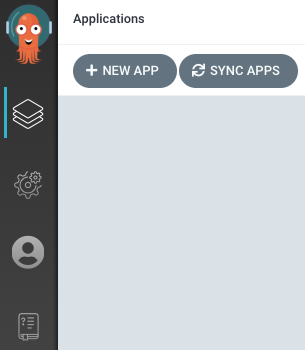 173 174 Give your app the name `guestbook`, use the project `default`, and leave the sync policy as `Manual`: 175 176 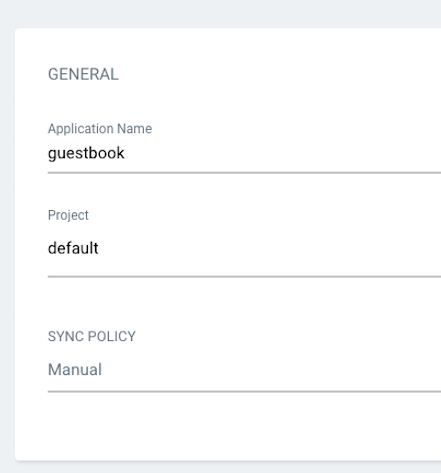 177 178 Connect the [https://github.com/argoproj/argocd-example-apps.git](https://github.com/argoproj/argocd-example-apps.git) repo to Argo CD by setting repository url to the github repo url, leave revision as `HEAD`, and set the path to `guestbook`: 179 180 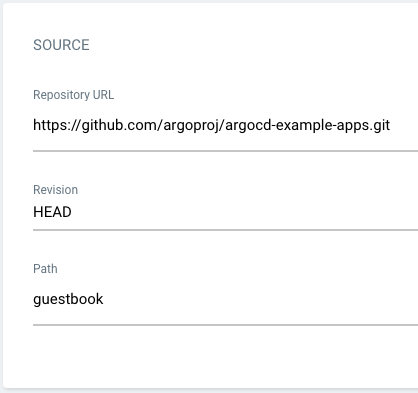 181 182 For **Destination**, set cluster URL to `https://kubernetes.default.svc` (or `in-cluster` for cluster name) and namespace to `default`: 183 184  185 186 After filling out the information above, click **Create** at the top of the UI to create the `guestbook` application: 187 188  189 190 191 ## 7. Sync (Deploy) The Application 192 193 ### Syncing via CLI 194 195 Once the guestbook application is created, you can now view its status: 196 197 ```bash 198 $ argocd app get guestbook 199 Name: guestbook 200 Server: https://kubernetes.default.svc 201 Namespace: default 202 URL: https://10.97.164.88/applications/guestbook 203 Repo: https://github.com/argoproj/argocd-example-apps.git 204 Target: 205 Path: guestbook 206 Sync Policy: <none> 207 Sync Status: OutOfSync from (1ff8a67) 208 Health Status: Missing 209 210 GROUP KIND NAMESPACE NAME STATUS HEALTH 211 apps Deployment default guestbook-ui OutOfSync Missing 212 Service default guestbook-ui OutOfSync Missing 213 ``` 214 215 The application status is initially in `OutOfSync` state since the application has yet to be 216 deployed, and no Kubernetes resources have been created. To sync (deploy) the application, run: 217 218 ```bash 219 argocd app sync guestbook 220 ``` 221 222 This command retrieves the manifests from the repository and performs a `kubectl apply` of the 223 manifests. The guestbook app is now running and you can now view its resource components, logs, 224 events, and assessed health status. 225 226 ### Syncing via UI 227 228 On the Applications page, click on *Sync* button of the guestbook application: 229 230  231 232 A panel will be opened and then, click on *Synchronize* button. 233 234 You can see more details by clicking at the guestbook application: 235 236