github.com/nwidger/bat@v0.0.2/README.md (about) 1 # bat 2 Go implemented CLI cURL-like tool for humans. Bat can be used for testing, debugging, and generally interacting with HTTP servers. 3 4 Inspired by [Httpie](https://github.com/jakubroztocil/httpie). Thanks to the author, Jakub. 5 6 7  8 9 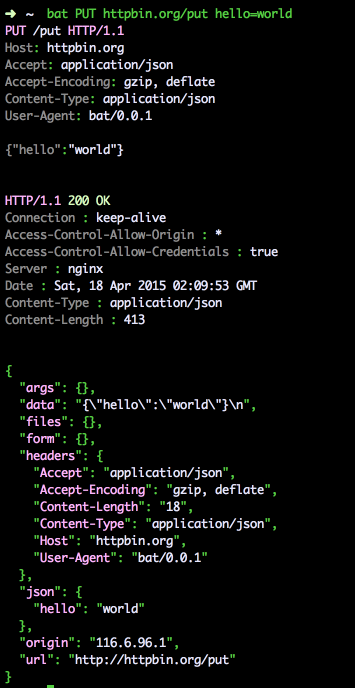 10 11 - [Main Features](#main-features) 12 - [Installation](#installation) 13 - [Usage](#usage) 14 - [HTTP Method](#http-method) 15 - [Request URL](#request-url) 16 - [Request Items](#request-items) 17 - [JSON](#json) 18 - [Forms](#forms) 19 - [HTTP Headers](#http-headers) 20 - [Authentication](#authentication) 21 - [Proxies](#proxies) 22 23 ## Main Features 24 25 - Expressive and intuitive syntax 26 - Built-in JSON support 27 - Forms and file uploads 28 - HTTPS, proxies, and authentication 29 - Arbitrary request data 30 - Custom headers 31 32 ## Installation 33 34 go get -u github.com/astaxie/bat 35 36 make sure the `$GOPATH/bin` is added into `$PATH` 37 38 ## Usage 39 40 Hello World: 41 42 $ bat beego.me 43 44 Synopsis: 45 46 bat [flags] [METHOD] URL [ITEM [ITEM]] 47 48 See also `bat --help`. 49 50 ### Examples 51 52 Basic settings - [HTTP method](#http-method), [HTTP headers](#http-headers) and [JSON](#json) data: 53 54 $ bat PUT example.org X-API-Token:123 name=John 55 56 Any custom HTTP method (such as WebDAV, etc.): 57 58 $ bat -method=PROPFIND example.org name=John 59 60 Submitting forms: 61 62 $ bat -form=true POST example.org hello=World 63 64 See the request that is being sent using one of the output options: 65 66 $ bat -v example.org 67 68 Use Github API to post a comment on an issue with authentication: 69 70 $ bat -a USERNAME POST https://api.github.com/repos/astaxie/bat/issues/1/comments body='bat is awesome!' 71 72 Upload a file using redirected input: 73 74 $ bat example.org < file.json 75 76 Download a file and save it via redirected output: 77 78 $ bat example.org/file > file 79 80 Download a file wget style: 81 82 $ bat -download=true example.org/file 83 84 Set a custom Host header to work around missing DNS records: 85 86 $ bat localhost:8000 Host:example.com 87 88 Following is the detailed documentation. It covers the command syntax, advanced usage, and also features additional examples. 89 90 ## HTTP Method 91 The name of the HTTP method comes right before the URL argument: 92 93 $ bat DELETE example.org/todos/7 94 95 which looks similar to the actual Request-Line that is sent: 96 97 DELETE /todos/7 HTTP/1.1 98 99 When the METHOD argument is omitted from the command, bat defaults to either GET (if there is no request data) or POST (with request data). 100 101 ## Request URL 102 The only information bat needs to perform a request is a URL. The default scheme is, somewhat unsurprisingly, http://, and can be omitted from the argument – `bat example.org` works just fine. 103 104 Additionally, curl-like shorthand for localhost is supported. This means that, for example :3000 would expand to http://localhost:3000 If the port is omitted, then port 80 is assumed. 105 106 $ bat :/foo 107 108 GET /foo HTTP/1.1 109 Host: localhost 110 111 $ bat :3000/bar 112 113 GET /bar HTTP/1.1 114 Host: localhost:3000 115 116 $ bat : 117 118 GET / HTTP/1.1 119 Host: localhost 120 121 If you find yourself manually constructing URLs with query string parameters on the terminal, you may appreciate the `param=value` syntax for appending URL parameters so that you don't have to worry about escaping the & separators. To search for bat on Google Images you could use this command: 122 123 $ bat GET www.google.com search=bat tbm=isch 124 125 GET /?search=bat&tbm=isch HTTP/1.1 126 127 ## Request Items 128 There are a few different request item types that provide a convenient mechanism for specifying HTTP headers, simple JSON and form data, files, and URL parameters. 129 130 They are key/value pairs specified after the URL. All have in common that they become part of the actual request that is sent and that their type is distinguished only by the separator used: `:`, `=`, `:=`, `@`, `=@`, and `:=@`. The ones with an `@` expect a file path as value. 131 132 133 | Item Type | Description | 134 | ------------------------| ------------------------------ | 135 |HTTP Headers `Name:Value`|Arbitrary HTTP header, e.g. `X-API-Token:123`.| 136 |Data Fields `field=value`|Request data fields to be serialized as a JSON object (default), or to be form-encoded (--form, -f).| 137 |Form File Fields `field@/dir/file`|Only available with `-form`, `-f`. For example `screenshot@~/Pictures/img.png`. The presence of a file field results in a `multipart/form-data` request.| 138 |Form Fields from file `field=@file.txt`|read content from file as value| 139 |Raw JSON fields `field:=json`, `field:=@file.json`|Useful when sending JSON and one or more fields need to be a Boolean, Number, nested Object, or an Array, e.g., meals:='["ham","spam"]' or pies:=[1,2,3] (note the quotes).| 140 141 You can use `\` to escape characters that shouldn't be used as separators (or parts thereof). For instance, foo\==bar will become a data key/value pair (foo= and bar) instead of a URL parameter. 142 143 You can also quote values, e.g. `foo="bar baz"`. 144 ## JSON 145 JSON is the lingua franca of modern web services and it is also the implicit content type bat by default uses: 146 147 If your command includes some data items, they are serialized as a JSON object by default. bat also automatically sets the following headers, both of which can be overwritten: 148 149 |Content-Type | application/json | 150 | -------------| ----------------- | 151 |Accept |application/json| 152 153 You can use --json=true, -j=true to explicitly set Accept to `application/json` regardless of whether you are sending data (it's a shortcut for setting the header via the usual header notation – `bat url Accept:application/json`). 154 155 Simple example: 156 157 $ bat PUT example.org name=John email=john@example.org 158 PUT / HTTP/1.1 159 Accept: application/json 160 Accept-Encoding: gzip, deflate 161 Content-Type: application/json 162 Host: example.org 163 164 { 165 "name": "John", 166 "email": "john@example.org" 167 } 168 169 Non-string fields use the := separator, which allows you to embed raw JSON into the resulting object. Text and raw JSON files can also be embedded into fields using =@ and :=@: 170 171 $ bat PUT api.example.com/person/1 \ 172 name=John \ 173 age:=29 married:=false hobbies:='["http", "pies"]' \ # Raw JSON 174 description=@about-john.txt \ # Embed text file 175 bookmarks:=@bookmarks.json # Embed JSON file 176 177 PUT /person/1 HTTP/1.1 178 Accept: application/json 179 Content-Type: application/json 180 Host: api.example.com 181 182 { 183 "age": 29, 184 "hobbies": [ 185 "http", 186 "pies" 187 ], 188 "description": "John is a nice guy who likes pies.", 189 "married": false, 190 "name": "John", 191 "bookmarks": { 192 "HTTPie": "http://httpie.org", 193 } 194 } 195 196 Send JSON data stored in a file (see redirected input for more examples): 197 198 $ bat POST api.example.com/person/1 < person.json 199 200 ## Forms 201 Submitting forms are very similar to sending JSON requests. Often the only difference is in adding the `-form=true`, `-f` option, which ensures that data fields are serialized correctly and Content-Type is set to, `application/x-www-form-urlencoded; charset=utf-8`. 202 203 It is possible to make form data the implicit content type instead of JSON via the config file. 204 205 ### Regular Forms 206 207 $ bat -f=true POST api.example.org/person/1 name='John Smith' \ 208 email=john@example.org 209 210 POST /person/1 HTTP/1.1 211 Content-Type: application/x-www-form-urlencoded; charset=utf-8 212 213 name=John+Smith&email=john%40example.org 214 215 ### File Upload Forms 216 217 If one or more file fields is present, the serialization and content type is `multipart/form-data`: 218 219 $ bat -f=true POST example.com/jobs name='John Smith' cv@~/Documents/cv.pdf 220 221 The request above is the same as if the following HTML form were submitted: 222 223 ``` 224 <form enctype="multipart/form-data" method="post" action="http://example.com/jobs"> 225 <input type="text" name="name" /> 226 <input type="file" name="cv" /> 227 </form> 228 ``` 229 230 Note that `@` is used to simulate a file upload form field. 231 232 ## HTTP Headers 233 To set custom headers you can use the Header:Value notation: 234 235 $ bat example.org User-Agent:Bacon/1.0 'Cookie:valued-visitor=yes;foo=bar' \ 236 X-Foo:Bar Referer:http://beego.me/ 237 238 GET / HTTP/1.1 239 Accept: */* 240 Accept-Encoding: gzip, deflate 241 Cookie: valued-visitor=yes;foo=bar 242 Host: example.org 243 Referer: http://beego.me/ 244 User-Agent: Bacon/1.0 245 X-Foo: Bar 246 247 There are a couple of default headers that bat sets: 248 249 GET / HTTP/1.1 250 Accept: */* 251 Accept-Encoding: gzip, deflate 252 User-Agent: bat/<version> 253 Host: <taken-from-URL> 254 255 Any of the default headers can be overwritten. 256 257 # Authentication 258 Basic auth: 259 260 $ bat -a=username:password example.org 261 262 # Proxies 263 You can specify proxies to be used through the --proxy argument for each protocol (which is included in the value in case of redirects across protocols): 264 265 $ bat --proxy=http://10.10.1.10:3128 example.org 266 267 With Basic authentication: 268 269 $ bat --proxy=http://user:pass@10.10.1.10:3128 example.org 270 271 You can also configure proxies by environment variables HTTP_PROXY and HTTPS_PROXY, and the underlying Requests library will pick them up as well. If you want to disable proxies configured through the environment variables for certain hosts, you can specify them in NO_PROXY. 272 273 In your ~/.bash_profile: 274 275 export HTTP_PROXY=http://10.10.1.10:3128 276 export HTTPS_PROXY=https://10.10.1.10:1080 277 export NO_PROXY=localhost,example.com